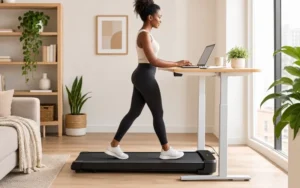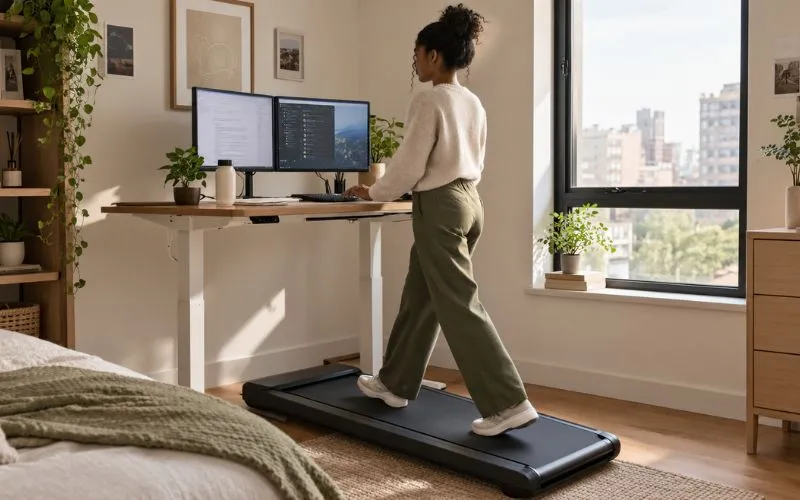
Typing gets clumsy. Calls feel awkward. By day four, the pad’s folded up against the wall again. The usual explanation is that people just aren’t disciplined enough to stick with it — but the more common problem is simpler: nobody tells you which speed works for which task, so you’re guessing, and guessing wrong feels like failure. Learning how to use a walking pad while working takes less willpower than you’d think — it’s mostly about matching your setup and pace to the task in front of you.
This guide skips the generic “start slow” advice and gets into the specifics: how to size your desk correctly, how to match your pace to what you’re actually doing, and how to handle video calls without your coworkers wondering what that background noise is.
Quick Answer
If you’re wondering how to use a walking pad while working, the short version is: put it under a desk you can raise, start at a slow pace, and match your speed to the task — slower or seated for precise typing or camera-on calls, faster for reading or audio-only calls. Increase gradually instead of trying to walk through a full workday on day one.
How to Use a Walking Pad While Working: Get the Setup Right
Set Up Your Walking Pad with a Standing Desk
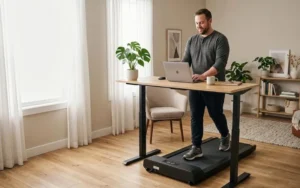
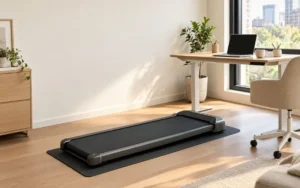
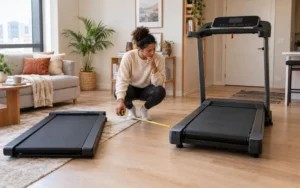
A walking pad only works under a sit-stand desk. Standing on the deck adds height, so a fixed-height desk that fit you before won’t fit you now — you’ll either hunch over the keyboard or stand too far back from the monitor. If you’re working from a regular desk, that’s the piece to solve before the pad is worth using at all.
Set the Right Desk Height for Walking While Working
There’s no universal number here, because deck height varies by model. The practical method: stand on the pad, let your arms hang relaxed, bend your elbows to about 90 degrees, and that’s your keyboard height. If you notice yourself hunching partway through a session, the desk needs to go up.
Check your pad’s listed deck height when you’re shopping — it’s usually in the spec sheet — since a thicker deck means a bigger adjustment than a slim one.
Choose the Right Shoes and Flooring for Your Walking Pad
Skip sandals, slippers, and bare feet — a walking pad belt is not forgiving of a foot that slides sideways. Real walking shoes or supportive sneakers are worth the switch.
If your desk sits on carpet, most pads want a hard, level surface underneath. A rigid mat or a plywood board under the unit usually solves it. Check your specific model’s manual first — some are built to handle carpet, most aren’t.
Walking Pad Workstation Setup: Monitor, Keyboard & Cables
A few details that are easy to skip and annoying to fix later:
- Monitor: top of the screen at eye level, roughly an arm’s length away. You’ll be walking, not sitting still — don’t make your neck do extra work.
- Keyboard and mouse: elbows near 90 degrees, same as any standing desk setup.
- Cables: route them away from the belt entirely. A cord near your feet on a moving deck is the one setup mistake that actually causes falls.
- Clearance: leave open floor in front of and behind the pad so you can step off without hesitation if something goes wrong.
These fundamentals come straight from OSHA’s computer workstation ergonomics guidance — walking adds a variable most standard advice doesn’t account for, which is why cable clearance matters more here than at a stationary desk.
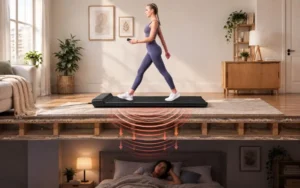
If you’re in an apartment: motor hum and footfalls travel more than you’d guess, especially through floors. A rug or mat under the unit absorbs some of it. Positioning the desk away from a shared wall helps too — how much depends entirely on your building.
Walking Pad Speed While Working: Match Your Pace to the Task
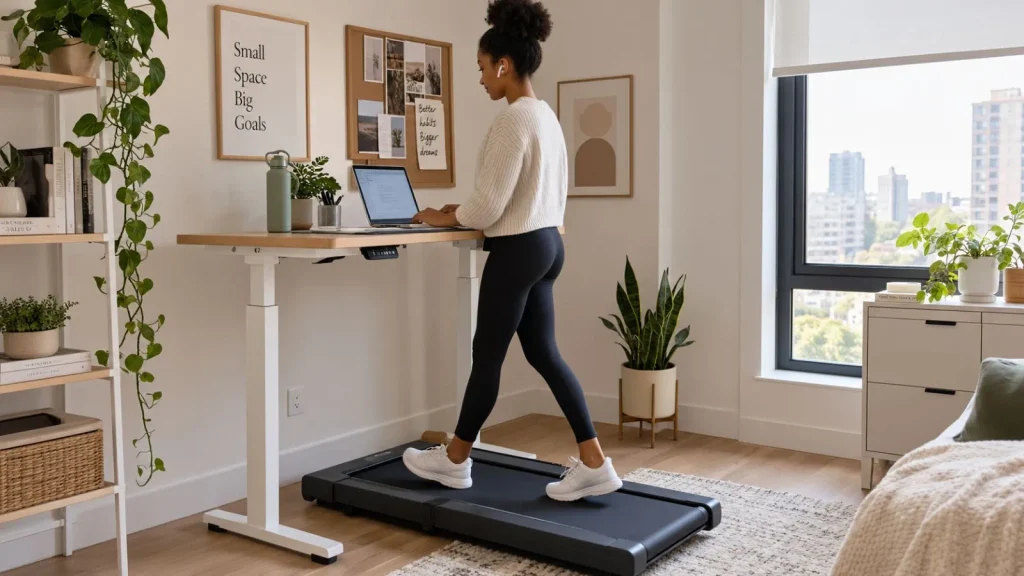
Most advice caps out at “walk 1 to 2 mph” and stops there, which is only half the answer. The other half is what you’re doing with your hands while you walk.
Walking adds a small amount of natural movement through your torso and arms. At a typing keyboard, that shows up as extra typos. On a phone call, it doesn’t matter at all. The task determines the pace — not the other way around.
| Task | Approach | Why |
| Camera-on video calls | Sit, or pause the belt | Movement and belt noise show up on video |
| Audio-only calls | Comfortable walking pace | No coordination demands |
| Email, Slack, messaging | Slower, steady pace | Typing needs some stability |
| Reading, research | Comfortable walking pace | Minimal hand coordination |
| Spreadsheets, data entry | Sit | Precision typing gets harder in motion |
| Writing, coding, design | Sit, or a very slow pace | High focus and precision |
Use this as a starting map, not a rulebook — everyone’s coordination threshold is a little different.
A quick way to find your own threshold
Pick a paragraph you know by heart. Type it seated, then type it again at your current walking pace. If the error count jumps noticeably, that pace is too fast for typing-heavy work. Drop the speed until the gap closes.
When I ran this test myself, 2 mph was fine for email but my typo rate roughly doubled on anything past that — yours will land somewhere different, but the method works the same way.
Recommended Pads for Desk Work
Video Calls: The Part Nobody Warns You About
This is where most people get caught off guard.
Camera bounce. Even a slow walk creates a slight vertical motion. On a webcam a foot from your face, that reads as fidgety or unstable on the other end. If you’re expected to be visible, step off or pause the belt — trying to compensate with camera angle doesn’t really fix it.
The noise your headset picks up that you don’t notice. Motor hum and footfalls are quieter to your own ears than they are through a microphone. If someone’s ever asked what that background noise was on a call, this is usually the answer.
The simple version: walk when you’re just listening or talking, sit when you’re on camera or sharing your screen.
A Sample Two-Week Starting Point
“Start slow and build up” isn’t specific enough to act on. Here’s one way to structure it — treat it as a template, not a program to follow exactly.
| Days | Pace | Duration | Focus |
| 1–3 | Slow | Short sessions | Get used to the motion and your balance |
| 4–7 | Slightly faster | Slightly longer | Add one work block per day |
| 8–10 | Comfortable pace | Longer session | Start applying task-based pacing |
| 11–14 | Comfortable pace | Extended session | Build toward a routine that fits your day |
The point of the first two weeks isn’t logging maximum time — it’s figuring out what pace and duration you can actually sustain without your feet or back complaining. Some people move through this faster, some slower.
Watch for: sore feet or ankles, tight lower back, or posture that starts slipping mid-session. Any of those means back off on speed or duration. If soreness sticks around past a few days, that’s worth a conversation with a healthcare professional rather than pushing through it.
By the end of two weeks, you’ll have your own answer to how to use a walking pad while working without wrecking your focus or your feet.
Safety and Posture Checklist
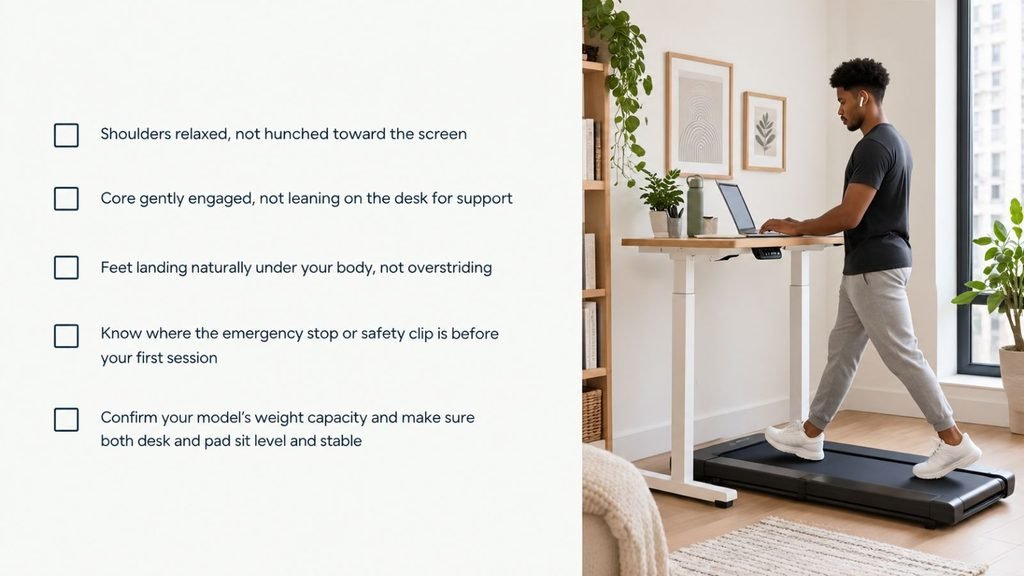
When Something’s Off
Belt drifting or wobbling at speed. Usually a leveling issue, or the belt needs re-centering — check the manufacturer instructions for the adjustment procedure.
Desk shaking while you walk. This is the desk, not the pad. Check that the legs are locked and the pad isn’t touching the desk frame.
Sore feet or joints afterward. Check footwear first, then pace, then how fast you increased duration. Scaling back usually resolves it within a few days — if it doesn’t, see a professional.
FAQs
Can I use a walking pad without a standing desk?
Not really, no. You need a desk you can raise to match the added height of standing on the deck.
What’s a good speed for typing on a walking pad?
Slower and steadier beats faster, but the exact number is personal — test it yourself rather than aiming for a specific figure.
Can I put a walking pad on carpet?
Usually not without help. A rigid mat or board between the carpet and the pad is the standard fix — check your model’s guidance first.
Will people notice I’m walking on a video call?
Possibly, through camera bounce and background noise. Sitting for camera-on calls sidesteps the issue entirely.
How long should I walk each workday?
No fixed number. Start with short sessions and let your comfort level set the pace for how much you add.
Does walking hurt productivity?
Depends on the task. Calls and reading: probably not. Precision typing or deep-focus work: possibly, especially early on — sit for those if you’re not sure.
Will it work on an apartment subfloor?
Depends on the building. A mat under the pad and some distance from shared walls helps, but results vary enough that there’s no reliable answer.
What speed should I set a walking pad to for working?
Most people land between 1 and 2 mph for desk work, but it depends on the task — slower for typing, faster for reading or calls. Test your own threshold rather than copying a fixed number.
Do you burn calories walking on a walking pad while working?
Yes, though at desk-work speeds it’s a modest, steady burn rather than a workout — the benefit is mostly about breaking up sitting time, not calorie count.
Don’t own one yet? See walking pads suited to small apartments.